ONESOURCE
Workpapers Help
Run a Batch
You can run Batches in the following ways:
When Choosing an Existing Batch
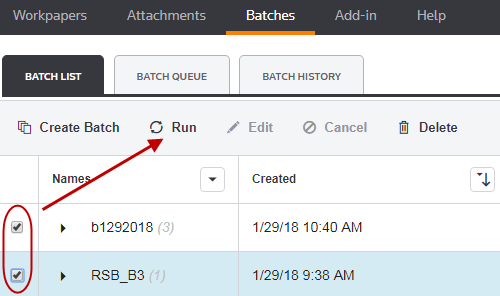
Run existing batches directly from the BATCH LIST tab:
- Select the batch check boxes, and then select Run.
If the batch type is Sequential and has locked or checked out workpapers, you cannot run it until you unlock the workpapers or check them in.
- Look for the confirmation message in a green banner (it disappears automatically):

If the banner message is not green, you may receive one of the following:
- Orange: Indicates both successful and unsuccessful batches that can queued.
- Red: Indicates batches that cannot be queued.
- Select BATCH QUEUE to see the status.
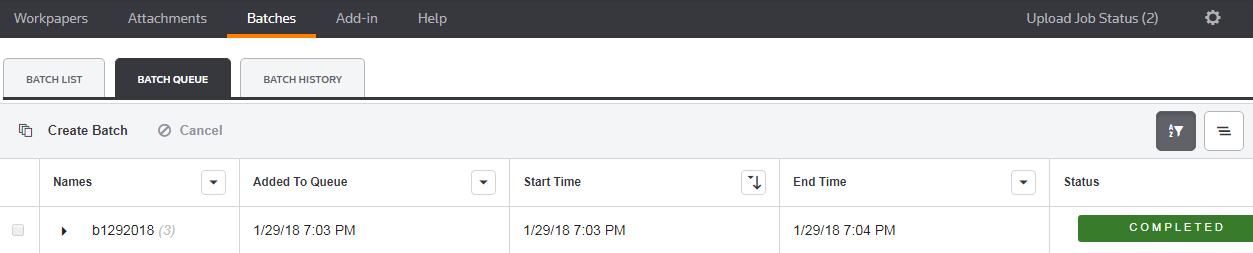
BATCH QUEUE shows the status of running batches and the list of all the batches you run.
When Creating a New Batch or Editing a Batch
Whether you are creating a new batch or editing an existing batch, the steps in the wizards are identical, and each wizard allows you to save and run batches.
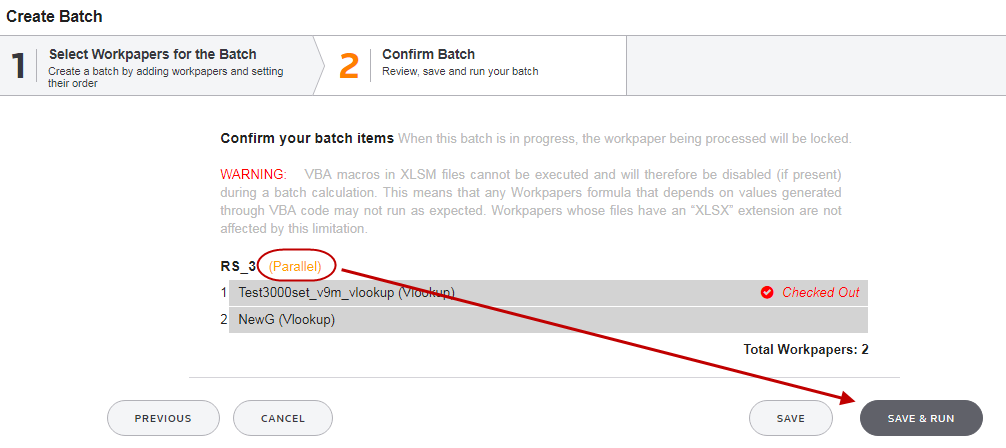
For example, in the second step of the Create Batch wizard you have the option to select SAVE & RUN. This option is available for the following:
- All parallel batches, even if they have locked or checked out workpapers.
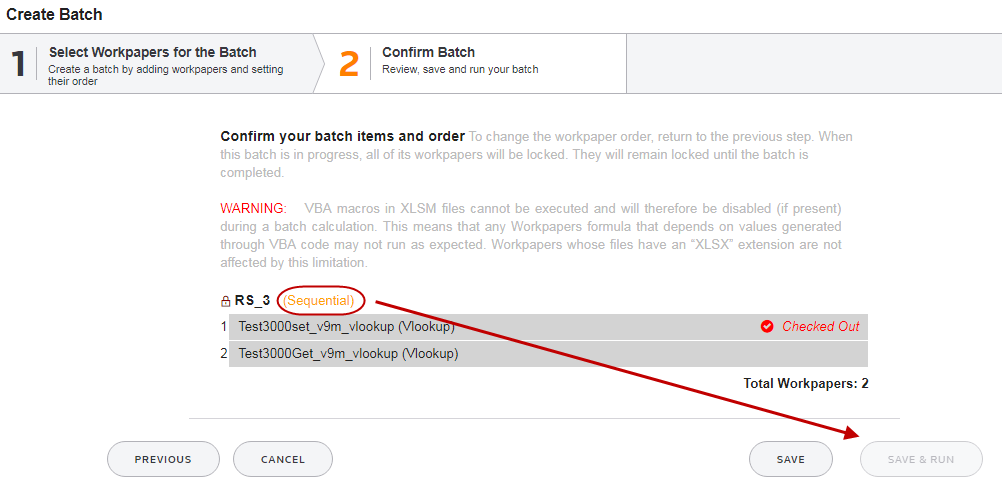
- Sequential batches that do not have locked or checked out workpapers.
The following is an example of a parallel batch that includes a checked out workpaper:
If your batch is sequential and contains a locked or checked out workpaper, you cannot run it from the wizard. Save it, and then run it after you remove the lock or check in the workpaper: